Content
- Update account details
- Password Resets
NOTE
OTP is disabled for BDR Licensees. Only the Client (LGIRS) have OTP enabled.
Update Account Details
Request must come from an authorised person at the venue (listed contact), or directly from the Client (LGIRS).
New user?
-
-
Disable the existing account.
-
Create a new user. Refer to steps 12 onwards in section "3 - Create an BDR Login Account".
-
Relevant Articles
-
BDR iPad: Functional Configurations (section Users)
- BDR: Setting up the iPad (Offline Scanning)
- BDR: New Venue
Password Resets
Firstly... who is asking for the password reset?
-
Is it the Client (LGIRS)? Proceed with the reset and ensure to document the request in HubSpot (ticket & company).
-
Is the requester the Licensee (venue)?
-
Are they listed as a contact for the venue? If yes, advise them to use the "I forgot my password" function.
- If you're unsure, escalate to your team lead. They can make the call to either escalate to the projects team or directly to the Client.
-
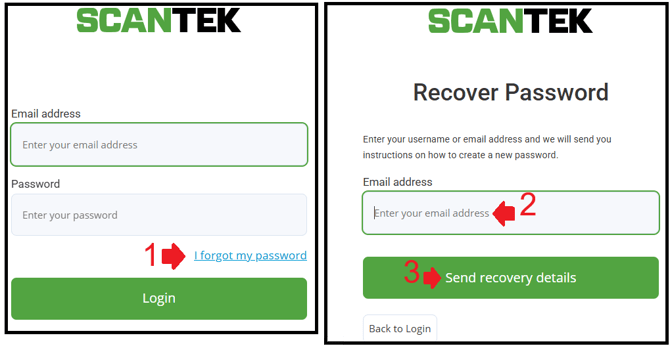
Self-service Password Reset
Advise the Licensee to use the "I forgot my password" function on the login screen.
 Manually reset the user password (Admin only)
This is an old method and not necessarily recommended when the Licensee has the option to reset it themselves.
This method allows you or an authorised person, to manually reset the Licencee's password. To do so:
- Go to https://keycloak.bdr.scantek.cloud/
- Login with "admin" (see Bitwarden "BDR Keycloak Admin")
- Once logged in, select the "Scantek" realm

- Click "Users"
- Find and select the user whose password needs to be reset
- This page is the Users page. Here you can view their Keyclock user information:

- Select the "Credentials" tab
- Click "Reset password"

- Enter a temporary password as per the password requirements.

If you reset the Password here, it will not email them the Password. you will have to email it to them or pass it over the phone.
Make sure Temporary is Selected. This will make them change the password to one they choose once they have logged in with the one you have set. - Toggle on "Temporary".
This will make the Licensee change the password once they have logged in with the temporary password you set. - Click "Save" and confirm.

[HIGH RISK] Update Licensee Password (Admin Only)
⚠️ Last resort and NOT recommended ⚠️
WARNING
The Client (LGIRS) must request this or authorise this step. Preferably, while they are onsite.
This step is to change the Licensee's BDR App password on their behalf. To do so,
-
In step 10 above, toggle the "Temporary" option to off.
The Licensee will not be prompted to reset their password at the next login. - Click "Save" and confirm.
-
Make note of the password and provide to the Licensee over the phone.